HackTown
Cyber Criminal University - Home

You are not logged in. You will only be able to access the courses in GREEN from the course list.
Chapter 4 - The fuck is a Word document?
This chapter will cover the technical side of things but if you're not technically inclined please still read through this part so you have a basic understanding of what a Microsoft Word macro document is made up of.
Microsoft Word 1997-2003 saves documents as a .doc file by default and uses a file format known as Object Linking and Embedding (OLE) and is not easily manipulated whereas the newer versions of Microsoft Word save documents as a .docx by default. Let's focus on up to date relevant shit because most people are using up to date Microsoft Word or Office 365. I'm sure some people are still using Microsoft Word 2010/11 or 2016 but get with the times man. We'll assume that most people who have purchased a laptop/computer within the past 10 years would have updated versions of Microsoft Word/Office installed.
The newer versions of Microsoft Office save macro Word documents as a .docm which is a compressed archive. Basically a .docm file is the same as a .zip file which consists of a bunch of XML files that can be easily read. In a macro enabled Word document you also have OLE files involved like in Microsoft Word 1997-2003 and the OLE file contains a filed called vbaProject.bin. That file is where the details of the macro code and the "p-code" are stored.
Remember, Microsoft Word saves macro documents as .docm file which, as discussed, are simply a zip archive file format.
From here moving on with this course it's best to create a Microsoft Word macro document and follow along. Don't just blindly read through it but learn and advance your skills!
Open a blank document in Microsoft Word and save it as "Test.docm". The screenshots below are shown on a macOS but Windows is the exact same so don't get all out of whack because it looks different.
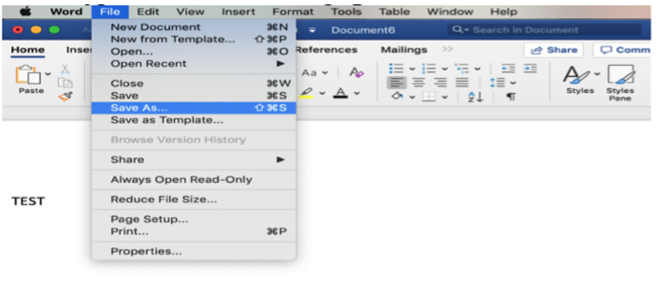
Create a blank document, type TEST on the first page, click File and save it as "Test.docm".
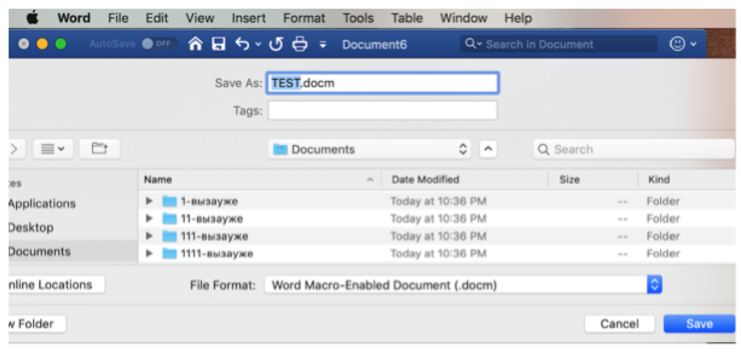
Name it "Test.docm" and select .docm from the File Format drop down menu and click Save.
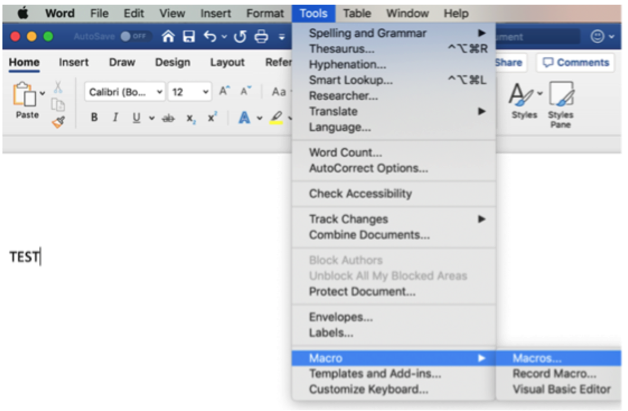
Next let's add our test macro. Click on Tools -> Macro -> Macros...
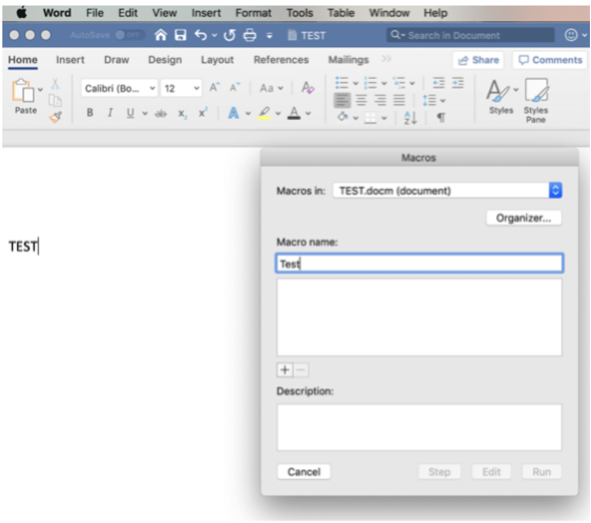
From the drop-down Menu of "Macros in:" select "Test.docm". Name the Macro "Test" (or whatever name you prefer) and click on the "+" sign just above "Description".
Once you've clicked on the "+" sign you will be displayed the default macro shown below. We'll replace this default macro with our test macro that we'll be using throughout this guide.
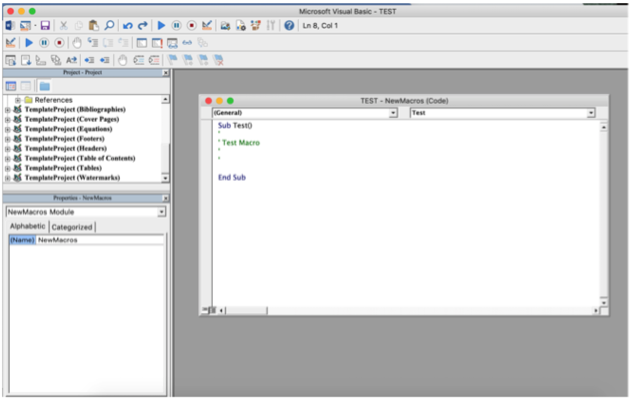
Copy the test macro code below and replace the default macro code.
Sub Auto_Open()
Call Winsheller
End Sub
Sub AutoOpen()
Call Winsheller
End Sub
Function Winsheller() As Object
On Error GoTo ErrorHandler
Err.Clear
ChDir "C:\\"
MsgBox "Testing"
ErrorHandler:
Macsheller
End FunctionFunction Macsheller()
MsgBox "Testing"
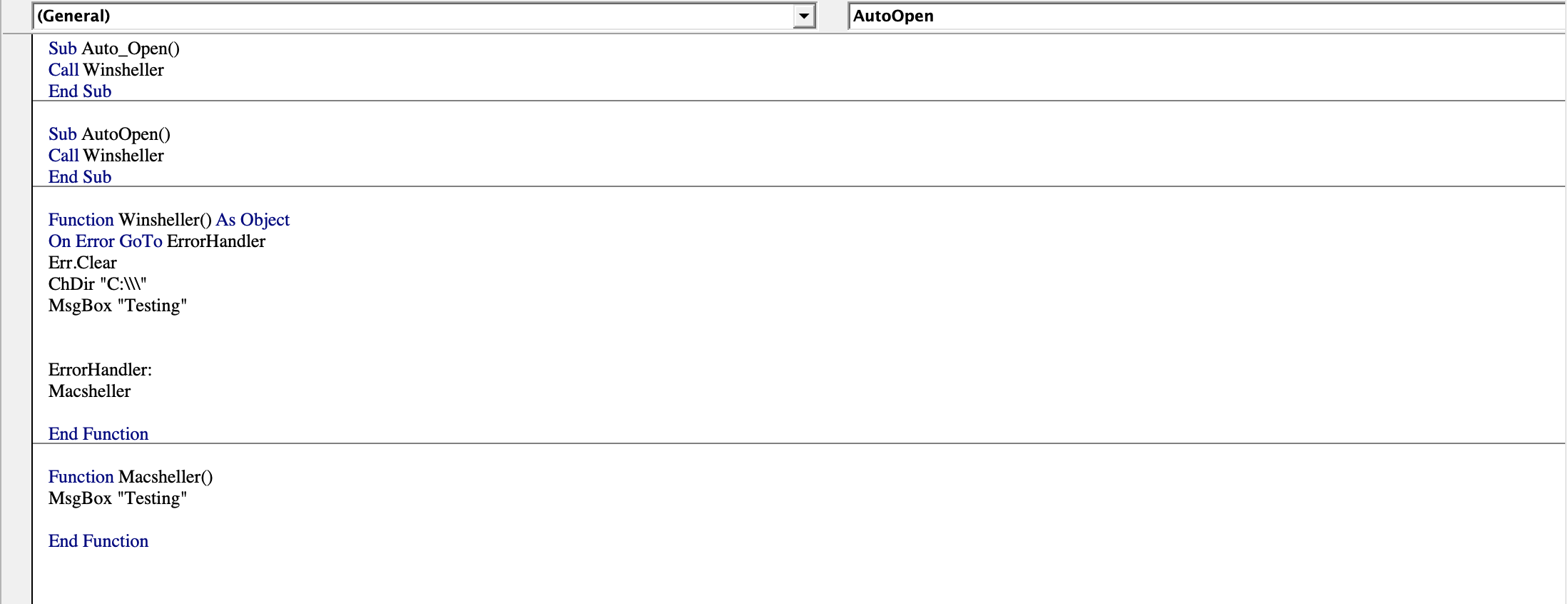
End FunctionThe test macro code above will pop up a message box saying "Testing" to the user. "Auto_Open()" will automatically launch the macro once the document is opened for older versions of Microsoft Word whereas "AutoOpen()" will automatically launch the macro for newer versions of Microsoft Word. Both should be included to ensure you're capturing all versions respectively. This example macro is developed in a way that detects which OS is opening the document and is a very simple macro to determine OS. If the document is opened on macOS then it will encounter a Windows function called "ChDir "C:\\" which tries to change into the "C:" directory which obviously won't work on macOS so it will throw an error dropping down into the "Macsheller" function which executes the appropriate commands for macOS. This is a simple and good all-around macro to help detect whether a Windows or macOS user has opened your document in order to deliver the proper payload accordingly.
Make sure your macro code is exactly as the code posted below and save the macro with Command + S. Then push the play button and click "Run" when prompted.
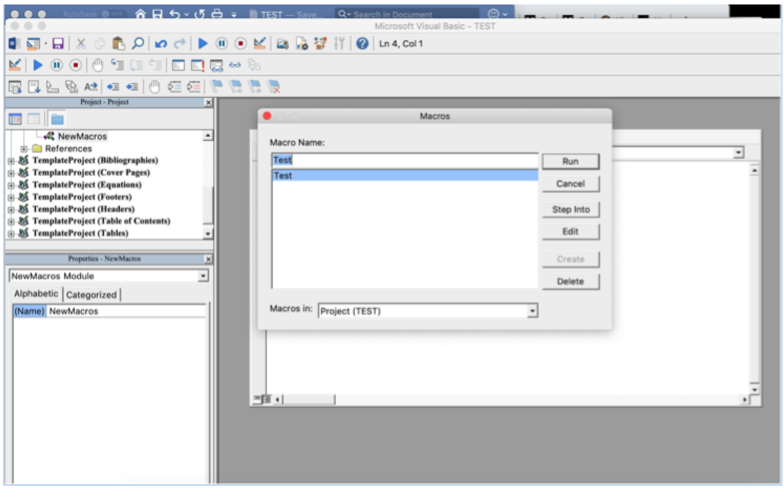
After clicking on "Run" the macro is executed and you should be displayed the message box "Testing".
Click OK and close out that file completely by clicking on the red button top left or exiting fully out of Microsoft Word. Now open the same file up and see how you're presented the macro display and enable the content to be prompted the message..
Alright now that we've made our own macro document and saved it as "Test.docm" let's put that file onto our Kali VM. If you don't know how to do this you should have a shared folder enabled on the Kali VM or wget it over. There are a thousand ways of doing this but this is basic stuff so if you're unsure of how to do this then Google and YouTube are your friends when learning how to share a folder or send a file between host and VM.
Once you have "Test.docm" on your Kali VM then go to the directory where "Test.docm" is and type the following into Terminal:
file Test.docm
unzip Test.docm
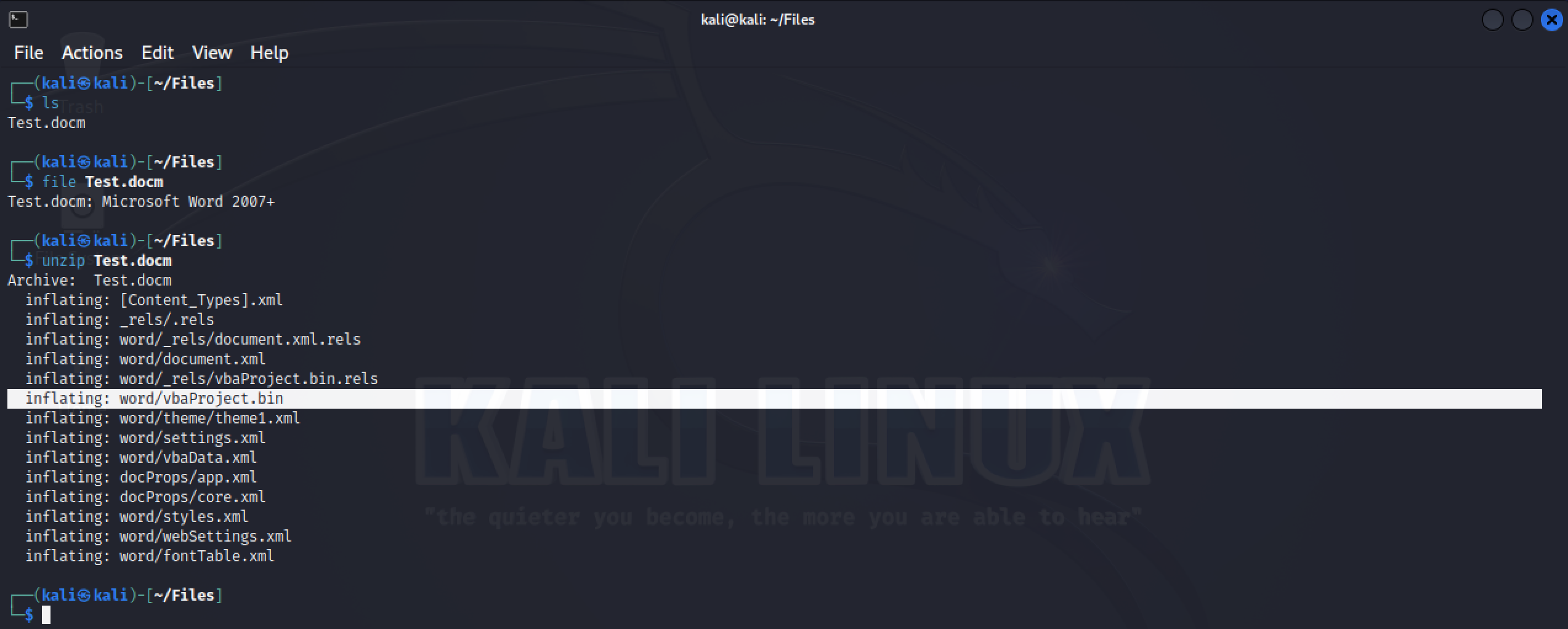

It's important to note the vbaProject.bin file is where most AVs scan through to determine if the macro has malicious intent or a matching malicious signature.
You'll notice "word/vbaProject.bin". This file is where the macro code is actually stored. Any time a Microsoft Office file has a macro embed in it you'll find it in "vbaProject.bin".
This file location is selected and saved by Microsoft Office by default.
Default locations are:
| Version | Location |
|---|---|
Since we know where the Macro code is stored then you know what that means don't you?! Anti-Virus also knows to look through vbaProject.bin when scanning documents for malicious items. Moving along...
For now, we'll leave everything as is. If you unzipped the document you can now delete all those files.
sudo rm -r word
sudo rm -r _rels
sudo rm -r docProps
sudo rm [Content_Types].xml
The learning point here is to show you what's inside the compressed Word Document archive, learn where the macros are stored, and learning the other files associated to the make-up of a Microsoft Word macro document.
I recommend to always rename the .docm to a .doc after you've created the Macro document before delivering it to your targets of interest. I recommend this because the average user usually is able to recognize a ".doc" file but a ".docm" may be something they may not be familiar with which might raise their suspicions. I haven't played around to look at the statistics with how many users open what type of document but a .doc file is the norm among the average idiots out there. Let's do this now. Rename "Test.docm" file to "Test.doc"
mv Test.docm Test.doc
The reason that you're able to rename a .docm to a .doc file is because there are a series of bytes at the beginning of every file on a computer that identifies what that type of file is. When it comes to a .docm file this number is "504b0304" that indicates it's a zip archive. You're able to rename the .docm file to a .doc file but still hold the series of bytes identifying it as a zip archive and still being in that file format. Also, some files that try to alter file headings usually are flagged as malicious so being a legitimate zip archive with the file format matching helps go undetected from a file format standpoint of view.
Once you've renamed the file go ahead and open "Test.doc" then enable macros so you're able to get a feel for how this attack appears to people who will be opening your document. You'll notice a minor delay once you've enabled the macro on the document until the msgbox "Testing" is prompted. Depending on how complicated your macro is this delay can be very noticeable to the end user. Take note and always test it to see how it functions first before sending it.
- Understanding what a Microsoft Word document is made up of.
- How to develop the Word document test Macro to be used in future chapters.
- Knowing macro (VBA) code is stored in vbaProject.bin which is where the "p-code" lives.
Alright now that we have the basics of what a macro document is and the functionality of it let's see how we can weaponize the fuck out of it.