HackTown
Cyber Criminal University - Home

You are not logged in. You will only be able to access the courses in GREEN from the course list.
Chapter 9 - PGP
You should have an idea of what PGP is because you've already read the "Jolly Rogers" chapter. It's always best to test your PGP keys when you've created them to ensure you're able to decrypt messages before you send out your public PGP key to clients, associates, etc.
Since you should be using Whonix in a VM or booting Tails from USB the following examples only apply to those operating systems.
Create your PGP keys
Load up your Whonix VM or Tails OS and open Terminal:
gpg --full-gen-key
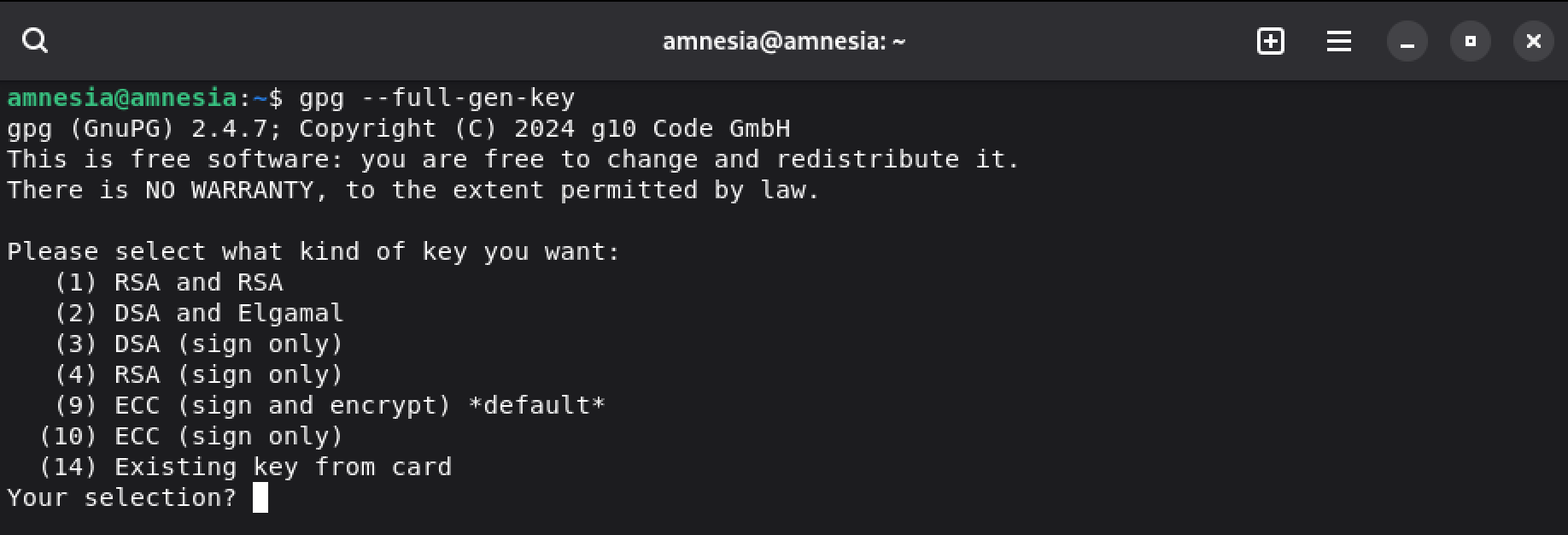
Hit the number "9" on your keyboard to Select "ECC (sign and encrypt) *default*" and then select "1" for "Curve 25519 *default*" then "0" so your key doesn't expire and finally confirm it when asked. Enter fake or whatever details and create your PGP keys.
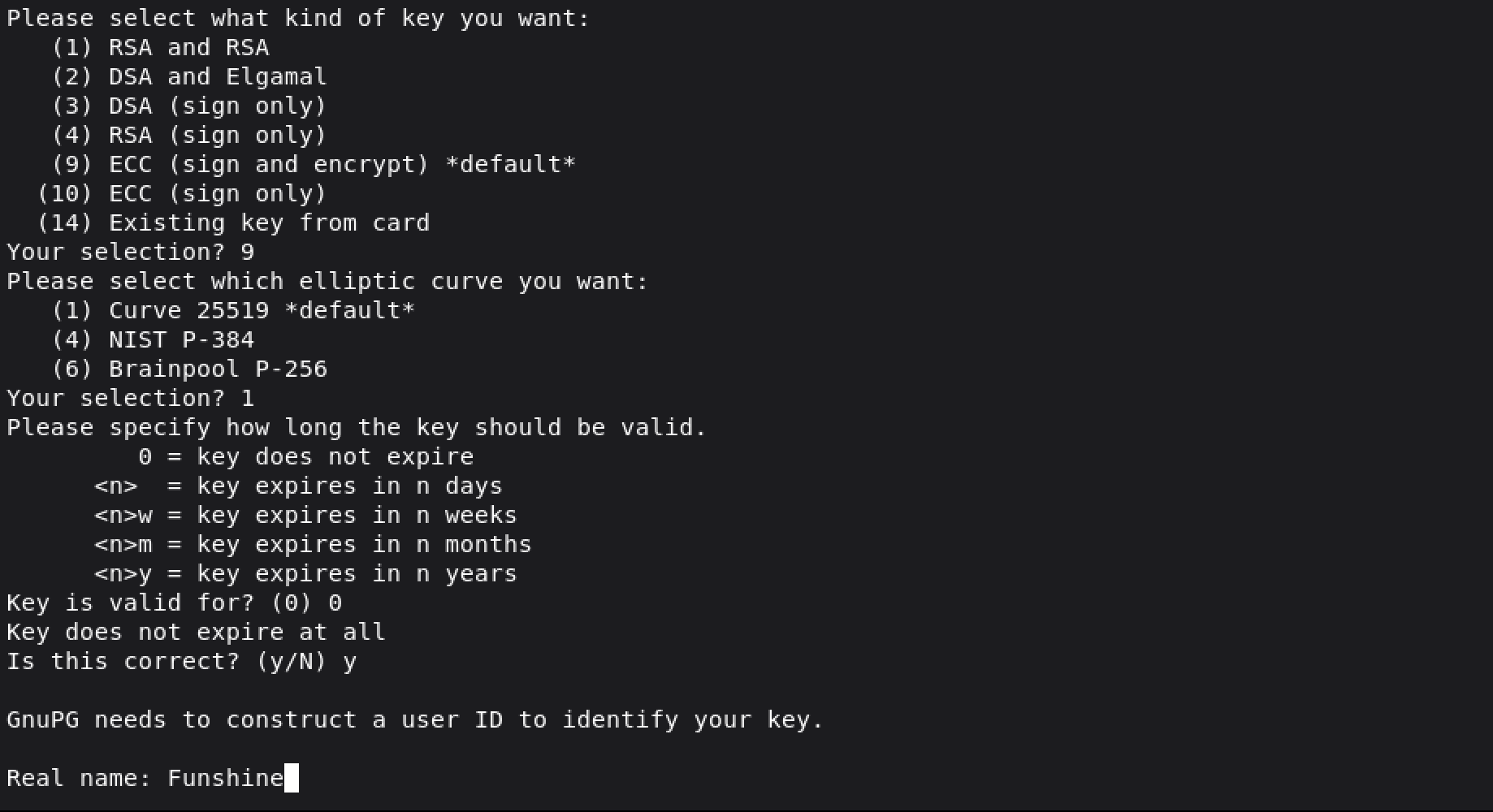
You'll be prompted to enter a passphrase which will be used to decrypt the PGP messages that are sent to you. Ensure you remember this passphrase as you'll need it.
Exporting your public PGP key
You need to send someone your public PGP key in order for them to encrypt a PGP message to you. This is how.
To export your public PGP key you would open Terminal and type:
gpg --export -a "USERNAME"
To find your username of the keys you setup simply type:
gpg --list-keys
PGP OPSec
There are a few concerns about how people use PGP that you should be aware of. Let's take a look at some examples that demonstrate the weakness in people that use PGP incorrectly before you implement it yourself.
When you've received a new public PGP key it should be noted that sometimes when you import a public PGP key it will reach out to PGP servers to validate the key if setup to do so. Since you're using Whonix VM or Tails now you could care less but for the people who choose to use their host machine and not follow proper OPSec this will be a problem. Not every public PGP key will authenticate like this but if you've installed and are using Glasswire or Littlesnitch then you would've caught the outgoing connection to the PGP server when importing the key and denied the connection.
Theoretically LE could give you their public PGP key and collaborate with the PGP servers to determine what IP reached out to it when validating their specific public PGP key. Tin foil hat shit but very plausible it's occurring or will occur.
Below you'll see why using your host OS can be a concern sometimes without you even knowing it. Remember, you should be using Whonix in a VM or booting Tails.
Let's take a look at some examples of when people don't use Whonix or Tails and instead encrypt a PGP message from their host OS:
Example 1:
Example 2:
Example 3:
If you look at all of the examples above look at the line right under where it says "-----BEGIN PGP MESSAGE-----" you will see it's different in each example? This is because each PGP message was created on a different operating system.
Example 1 was done on a macOS computer.
Example 2 was done on a Windows computer.
Example 3 was done on a Linux computer.
Take a look again. Do you see the differences? By mistakenly letting others know what OS you're using allows for your adversaries to know what exploits and types of malware to send you ;)
This is why you should be using Whonix VM or booting Tails from USB when you're operating out there in the wild since those operating systems scrub any kind of identifying information and take care of everything for you.
If you were, for whatever reason, use PGP on Windows, macOS, or Linux there's no need to give out any information that can reveal what type of OS you're using. We ensure we're not leaking any sensitive details by using:
gpg --encrypt --armor --no-comments --no-emit-version -r PUBLIC_KEY_OF_RECEPIENT
When using PGP in Whonix or Tails in Terminal we use:
gpg --encrypt --armor -r KEY
See the difference in what's required? Whonix and Tails automatically remove identifying information for you which is why a lot of people will say to use these operating systems as they are "fool proof" in a way you see? Whereas the other people who are using Windows or macOS sending PGP messages are not fully aware they might be revealing certain things about themselves. You can see how this information can reveal more to our adversaries and the rationale for not wanting any of that leaked out.
Verifying PGP signed message.
The final PGP OPSec caution to be aware of is when you're signing a PGP message to verify it's you for whatever reason. You want to ensure you put the date in the message and the reason for the signed PGP message to ensure you don't get impersonated on other forums.
For example, if I've registered on a new hacking forum and existing members want me to prove my identity then I would sign a PGP message associated to my public PGP key. This is quite common and totally safe but below is a bad way of doing it.
To verify signed PGP messages we would:
gpg --verify
Hit enter on your keyboard then paste the whole signed PGP message including the headers as seen below in RED:
-----BEGIN PGP SIGNED MESSAGE-----
Everything in between these two lines
-----END PGP SIGNED SIGNATURE-----
Then hit enter once and hold "CTRL" then hit the letter "D" on your keyboard.
People can verify your signed message to know 100% it's you since only the public/private PGP key owner can sign the PGP message to prove their identity. However, since we didn't add any date or any information to the PGP signed message anyone can copy our signed message and use it on any forum attempting to impersonate you. So if you're going to verify yourself via PGP then ensure you cover your ass.
Food for thought.
Importing someone else's public PGP key
Before you encrypt any messages to your drug cartel gang bangers you need their public PGP key to encrypt messages specifically for them. Their public PGP key would appear like mine does:
When you've received a new public PGP key and you want to import it onto your key ring with PGP we then:
Open up terminal
gpg --import
Hit Enter on your keyboard
Paste my whole public PGP key and then hit enter once then hold "CTRL" and hit the letter "D" on your keyboard.
You can now see my key:
gpg: key C2C63F56AB167B3D: public key "Funshine (HackTown Admin)
"C2C63F56AB167B3D" is my key needed to send an encrypted PGP message to me.
In Whonix or Tails in Terminal:
gpg --encrypt --armor -r C2C63F56AB167B3D
Type out your message and when you're done hit enter then hold "CTRL" and hit the letter "D" on your keyboard which will produce the encrypted PGP message to send.
Encrypting a PGP message.
In Whonix or Tails in Terminal:
gpg --encrypt --armor -r KEY
Type out your message and when you're done hit enter then hold "CTRL" then hit the letter "D" on your keyboard which will produce the encrypted PGP message to send.
Remember to send the whole message including the associated headers to your clients/people.
So you would send everything in RED below:
-----BEGIN PGP MESSAGE-----
Everything in between
-----END PGP MESSAGE-----
Decrypting a PGP message sent to you.
In Whonix or Tails in Terminal:
gpg -d
Hit Enter on your keyboard
Paste the whole PGP message including the proper headers noted in RED.
-----BEGIN PGP MESSAGE-----
Everything in between
-----END PGP MESSAGE-----
Hit enter once then hold "CTRL" then hit the letter of "D" when done.
You'll need to enter your passphrase for your public PGP key in order to decrypt the message.
It depends if you want to store your communications, if at all, when conversing with other people after decrypting their messages. If you decide to keep a history of your conversations then ensure they're saved to your persistent encrypted folder in Tails or within Whonix which is stored on USB, SD Card, MicroSD Card, etc.