HackTown
Cyber Criminal University - Home

You are not logged in. You will only be able to access the courses in GREEN from the course list.
Chapter 4 - Hardware Spoofing
You should be aware that every network card in a laptop/computer has a Media Access Control (MAC) address associated to it. MAC addresses are "linked" to the physical network card installed in your laptop when they're manufactured. When you're connected to a Wi-Fi network the router uses something called a Address Resolution Protocol (ARP) which associates an IP address to a MAC address on the network. ARP is like a gateway that takes data going to your IP address (from the Internet) through a piece of computer hardware (your network card) to you. They work hand in hand.
In very basic drug addict terms, it means your laptop and the Wi-Fi router are connected and know about one another on the network so they can send the right data packets to the right computer. This way the Wi-Fi router can ensure the data is being sent to the proper person on the network. Makes sense right?
You don't have to know the technical details exactly, but you should have a general understanding of what MAC addresses are. So again, the data sent from your computer to the Internet has to be sent from your machine, to your Wi-Fi router, then to the Internet, and back again through the same process when receiving data. Not rocket science, right? Your router must know which IP to send the data back to or everyone on your network would receive everyone else's data. It would be a fuck show of packets. This obviously wouldn't work so we need the router to associate a MAC address to an IP and keep track of the clients on the network and where to send their packets so everyone receives the right data. Thanks to ARP and the associated ARP table the router knows which MAC address to deliver the data to and what their IP is.
MAC addresses are "unique" to each network card manufactured and can be identified to the specific make of a network card. For example, if we take a random MAC address such as 00:A3:BA:C2:2D:3A the first three sets of hexadecimal characters "00:A3:BA" are the manufacturer number and the rest is the serial number.
Consider MAC addresses as a fingerprint at a crime scene. Should the MAC address be logged when you're on a network and your laptop seized by the feds they could compare their logs and link the MAC address to your laptop linking you to whatever crazy crime you committed.
Hypothetically, let's say you've done something illegal when you were connected to your local library Wi-Fi network with your laptop and have attracted the attention of law enforcement (LE). Now the police are logging MAC addresses that connect to the local library public Wi-Fi network and looking for a suspect who hacked from that location they could potentially sit on that network looking for the same MAC address until they find it again and then begin to profile the people in the area.
Eventually leading them to you.
Whenever you save a Wi-Fi network that you've connected to in your computer or cell phone that means that device will always be looking for that saved Wi-Fi network. All the time. What that means is your devices are sending certain types of wireless packets looking for that saved network all the time. So when you're hacking your ass off at the local library your cellphone or computer is looking for "John Smith" Wi-Fi network to automatically connect to when it finds it. Anyone in the area capturing wireless packets would be able to see that device is looking for that specific network and use that to begin to profile individuals in that area if LE.
Remember, MAC addresses are "unique" so just by connecting to your home network and to another Wi-Fi you've used for illegal or questionable purposes you've created a potential connection to YOU, if indeed they're on to your activities and logging shit this isn't good. You've either unintentionally done this with your laptop or you've brought your cellphone with you and used your laptop to connect to an open network. Ultimately, they could associate the MAC address to the make of your computer and hypothetically could determine where that unit was sold. You should've purchased your "work" computer with cash so I wouldn't worry too much here. Investigations work exactly like this and connecting the dots will eventually point LE in the direction of a suspect. Classic police and detective work usually catches most people.
Example of tactics used by Law Enforcement (LE)
I'd say the majority of people out there know that spoofing their MAC address is a key step in preventing from being tracked while connected to Wi-Fi network. I don't think this is news to anyone. However, another important tracking method that can be used against you is the hostname of your computer OR your computer name. Your computer name is what you named your laptop such as Funshine-PC, HackTown MacBook, Funshine.local, etc.
The hostname can be traceable just as a MAC address if everything is being logged by authorities when on the network. Having random MAC addresses always appearing with the same hostname or computer name on the network is pretty obvious it's the same individual. All those tracking values should be changed before connecting to any network. Depending on which OS you are using will dictate which program you use and how you do it.
 If you're currently connected to a network where you can access the Wi-Fi router login page do so now and login into it. Find out where you're able to see what clients are connected to the network and you should be able to view how many clients are connected to the Wi-Fi network along with what their MAC address and computer name of each device connected to the network. If you have don't know how to access your Wi-Fi router login page then now is a good time to Google:
When I was younger I was spoofing my MAC address for years but didn't realize how ineffective this was until I had an issue on a corporate network that taught me this. There are other network tracking techniques that are used that look for similar computer names and hostnames. Your device can be tracked on a Wi-Fi network just as easily with the hostname/computer name as well just like the MAC. What I want you to understand is how you can be tracked on a network with other items besides your MAC address. Using your MAC address and computer name/hostname against you can help link you to other Wi-Fi networks that you connected to. The question comes down to is someone wathcing your actions? All bad. Making connections, connections, and more connections...
A perfect example is if you've every used Kali Linux before and you have installed Kali in a VM with default settings then the hostname is preset for you. If you don't know what a VM is just read through this part but come back to it after when you understand a little more. In a nut shell the Kali OS is an operating system used by hackers and by cyber security professionals around the world. Most people don't change the default settings when installing Kali and if you didn't either then your hostname by default would always be "kali".
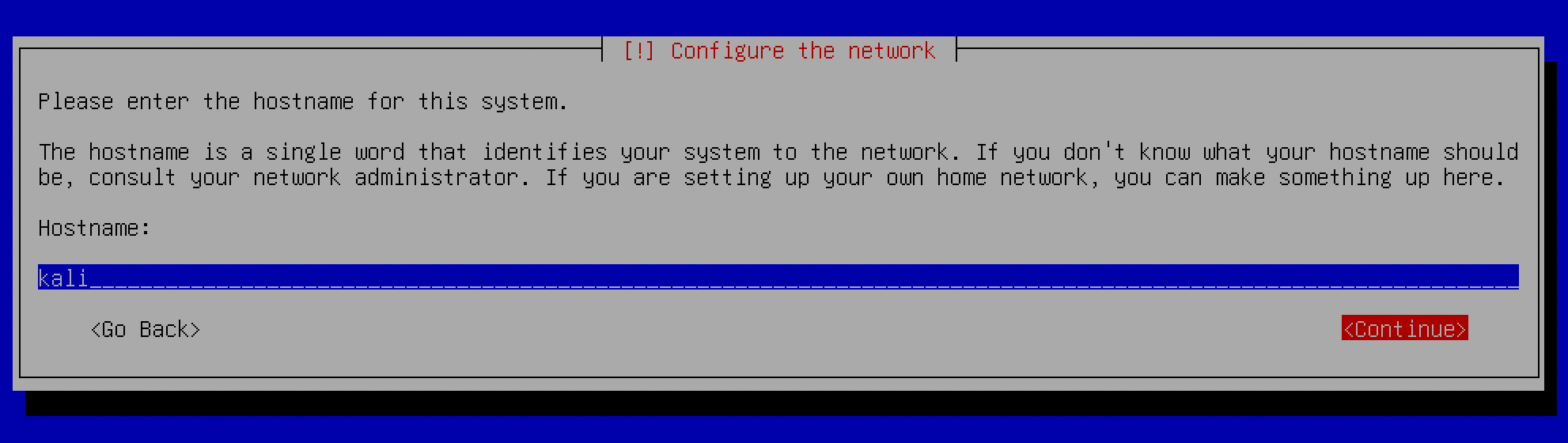
Let's see how it plays out.
Load up your Kali VM, open Terminal, and type:
hostname
If you didn't change any default settings when installing Kali in a VM then you will be displayed the hostname of your Kali VM and you'll notice that your hostname is "kali". Not really hiding much there are you? Anyone with the hostname "kali" for their computer is probably up to no good right? Let's hammer down the point.
In the following examples assume the following:
| MAC Address | Computer Name | Hostname | A1:B1:C1:D1:E1:F1 | Viktor | kali |
|---|---|---|
| A2:B2:C2:D2:E2:F2 | Viktor | kali |
| A3:B3:C3:D3:E3:F3 | Viktor | kali |
Example 1 - Spoofing your MAC
| MAC Address | Computer Name | Hostname | 00:11:22:33:44:55 | Viktor | kali |
|---|---|---|
| 11:22:11:33:44:11 | Viktor | kali |
| 22:11:22:33:11:44 | Viktor | kali |
As you can see just by spoofing your MAC address doesn't really hide who you are too well. "Viktor - kali" seems to be the one doing malicious activity on the network but yet their MAC address is different each time...hmmmm...right? Here you can see that just changing your MAC address doesn't mean you're covering up all your tracks.
Example 2 - Spoofing your MAC and changing computer name
| MAC Address | Computer Name | Hostname | 00:11:22:33:44:55 | Alexei-PC | Alexei |
|---|---|---|
| 11:22:11:33:44:11 | Anna-PC | Anna |
| 22:11:22:33:11:44 | Dina-PC | Dina |
I highly suggest changing all values before connecting to any network and on every shutdown of your computer! This should be done on your host machine and whatever VM you have connecting to the network.
You want to get in the habit of spoofing your MAC address, computer name, and hostname of your laptop before connecting to any network and when you shutdown your computer. You do this on shutdown because if they have tracked you down, investigating you, and have a MAC address to link you to some computer crime your laptop won't be involved. Just another little step to help break those connections to you. It's best to confirm this yourself if this is your first time spoofing any of these items to ensure that the commands you're typing actually are doing what they're intended to do.
When you fully mature at this tradecraft you can make your computer change all these values on startup and shutdown automatically by scripting it to do so. Break those connections they're not your friend.
Windows
https://www.technitium.com/tmac
Download and install TMAC.
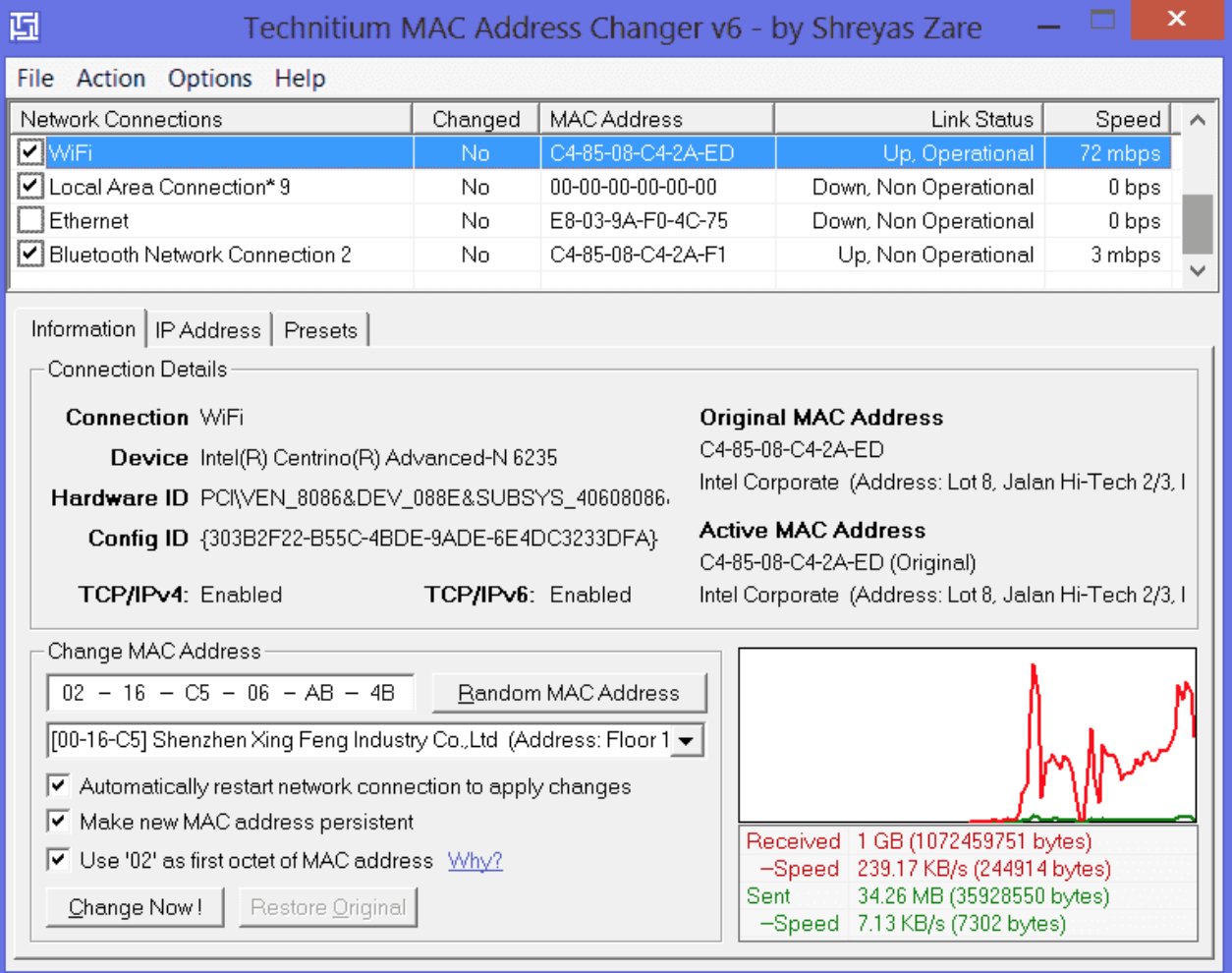
The TMAC GUI can be confusing to look at but don't worry all you need to do is click on "Random MAC Address" and then "Change Now !" to change your MAC. You can see in the screenshot above I've clicked on the adaptor first (highlighted in blue) before changing the MAC address.
Use "ipconfig" in Command Prompt to determine your network card needed to change and confirm it has been changed after using the program.
macOS
Ensure you've installed brew manager.
In Terminal.app type:
/bin/bash -c "$(curl -fsSL https://raw.githubusercontent.com/Homebrew/install/HEAD/install.sh)"
Figure out what interface your Wi-Fi card is on. For example my Wi-Fi interface is en0.
In Terminal.app type:
networksetup -listallhardwareports
Example:
Hardware Port: Wi-Fi
Device: en0
Ethernet Address: XX:XX:XX:XX:XX:XX
Assuming default Wi-Fi interface is "en0" for these examples. If not then use "en1" or whatever your Wi-Fi interface is.
Install MacChanger
In Terminal.app type:
brew update && brew install macchanger
You can confirm this tool works by doing the following:
In Terminal.app type:
ifconfig en0 | grep ether
This is your MAC address currently.
sudo macchanger -r en0
ifconfig en0 | grep ether
Your MAC address should be different now.
It's good practice to randomize your MAC address on every reboot and the following steps will do that automatically for you.
In Terminal.app type:
sudo touch /Library/LaunchAgents/MacChanger.plist
sudo open /Library/LaunchAgents/MacChanger.plist
Paste the following in ORANGE below:
<?xml version="1.0" encoding="UTF-8"?>
<!DOCTYPE plist PUBLIC "-//Apple//DTD PLIST 1.0//EN" "http://www.apple.com/DTDs/PropertyList-1.0.dtd">
<plist version="1.0">
<dict>
<key>Label</key>
<string>macchanger</string>
<key>ProgramArguments</key>
<array>
<string>macchanger</string>
<string>-r</string>
<string>en0</string>
</array>
<key>RunAtLoad</key>
<true/>
</dict>
</plist>
Save and Exit the file.
sudo launchctl load -w /Library/LaunchAgents/MacChanger.plist
This loads the file and will execute it on every reboot
Looking at the above code you can see all we're doing is running the "sudo macchanger -r en0" command on each reboot.
Linux
In Terminal type:
sudo apt update && sudo apt install macchanger -y
Command to use:
sudo ifconfig wlan0 down
sudo macchanger -r wlan0
sudo ifconfig wlan0 up
wlan0 is the network card interface example used and may be different for you.
Kali
In Terminal type:
sudo ifconfig wlan0 down
sudo macchanger -r wlan0
sudo ifconfig wlan0 up
wlan0 is the network card interface example used and may be different for you.
Not changing your hostname can lead to being tracked just as easily as a MAC address can be tracked on or across networks.
Windows
In Command Prompt:
powershell -Exec Bypass -Command "Rename-Computer -NewName NEW-NAME -Force -PassThru"
Example:
powershell -Exec Bypass -Command "Rename-Computer -NewName Funshine -Force -PassThru"
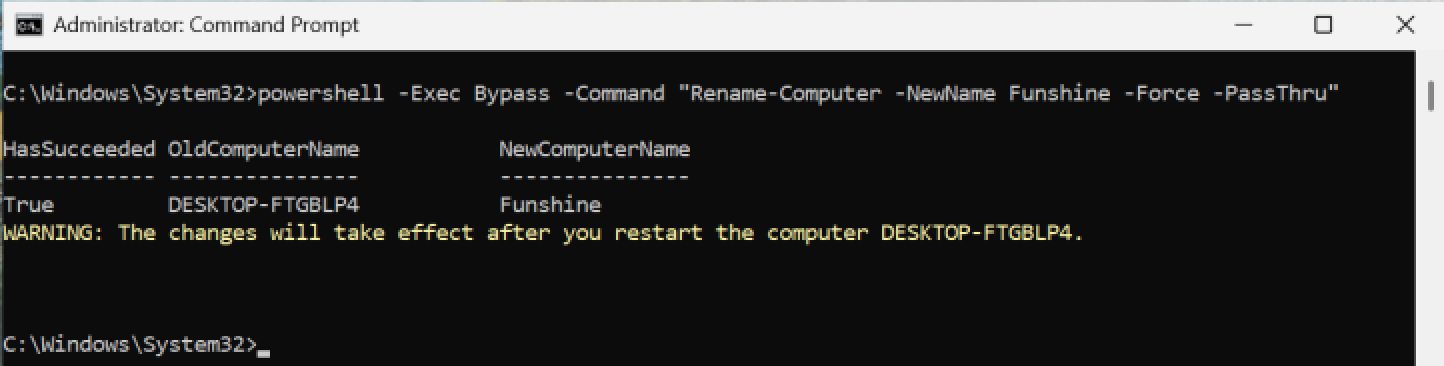
You can do it all using a PowerShell one liner:
powershell -Exec Bypass -Command "Rename-Computer -NewName NEW-NAME -Force -PassThru;Restart-Computer -Force"
macOS
Open Terminal and type "hostname" to see your current hostname then open up the Finder.app to see your "computer name" on the sidebar.
In Terminal.app
sudo scutil --set HostName NEW_HostName
sudo scutil --set LocalHostName NEW_LocalHostName
sudo scutil --set ComputerName NEW_ComputerName
This command will change the hostname and computer name of your macOS.
Example:
sudo scutil --set HostName Funshine
sudo scutil --set LocalHostName Funshine
sudo scutil --set ComputerName Funshine
You can confirm it has been correctly changed by opening up Terminal and typing "hostname" then opening up the Finder.app to see your new "computer name" on the side bar.
Linux
Open Terminal and type "hostname" to see your hostname. In the example below I spoof my hostname to "Funshine".
In the example below I spoof my hostname to "Funshine".
In Terminal type:
hostname
This will display your current hostname
cat /etc/hosts
You will notice your hostname here too beside "127.0.0.1" which we need to replace with the new hostname.
sudo hostnamectl set-hostname Funshine
sudo sed -i -E "/$(hostname)/d" /etc/hosts
sudo sh -c 'echo "127.0.0.1 $(hostname)" >> /etc/hosts'
This will persist after reboot compared to older commands such as "sudo hostname Funshine" only changed the hostname initially but would revert back to the original after reboot.
Kali
Open terminal and type "hostname" to see your current hostname
In the example below I spoof my hostname to "Funshine".
In Terminal type:
hostname
This will display your current hostname
cat /etc/hosts
You will notice your hostname here too beside "127.0.0.1" which we need to replace with the new hostname.
sudo hostnamectl set-hostname Funshine
sudo sed -i -E "/$(hostname)/d" /etc/hosts
sudo sh -c 'echo "127.0.0.1 $(hostname)" >> /etc/hosts'
This will persist after reboot compared to older commands such as "sudo hostname Funshine" only changed the hostname initially but would revert back to the original after reboot.
If you've followed these steps it's now considered reasonably "safe" to connect to a Wi-Fi network and feel confident that if there's any logging happening you're always a random connection to the Wi-Fi network each time. Be a ghost.
Oh and guess what? Consider doing all of this to your VMs as well if your intentions are devious in nature but at minimum your main computer.
You should try the above commands and spoof your MAC and computer/host name now. Always remember to spoof your MAC, computer name, and hostname before connecting to any network! It should become common practice to do this every time you start your machine before connecting to a network and before you shut down your machine. Ideally have it scripted, cronjob, and automated.